Back to AI Assistance
Chargebee
MCP Server that connects Cursor AI Agent to Chargebee platform.
Last updated: 1/27/2026
README
# Chargebee Model Context Protocol (MCP) Server

[](https://www.npmjs.com/package/@chargebee/mcp)
> ⚠️ Deprecation Notice
>
> This package is deprecated and will no longer receive updates or support.
Please migrate to our new KnowledgeBase MCP Server, which provides enhanced capabilities and improved accuracy.
> Learn more and upgrade here: [Chargebee MCP Server Documentation](https://www.chargebee.com/docs/billing/2.0/ai-in-chargebee/chargebee-mcp)
---
Model Context Protocol (MCP) is a [standardized protocol](https://modelcontextprotocol.io/introduction) designed to manage context between large language models (LLMs) and external systems.
The [Chargebee MCP Server](https://npmjs.com/package/@chargebee/mcp) offers a robust set of tools to improve developer efficiency. It integrates with AI-powered code editors like Cursor, Windsurf, and Cline, as well as general-purpose tools such as Claude Desktop. It is compatible with any MCP Client.
With this MCP Server, you can:
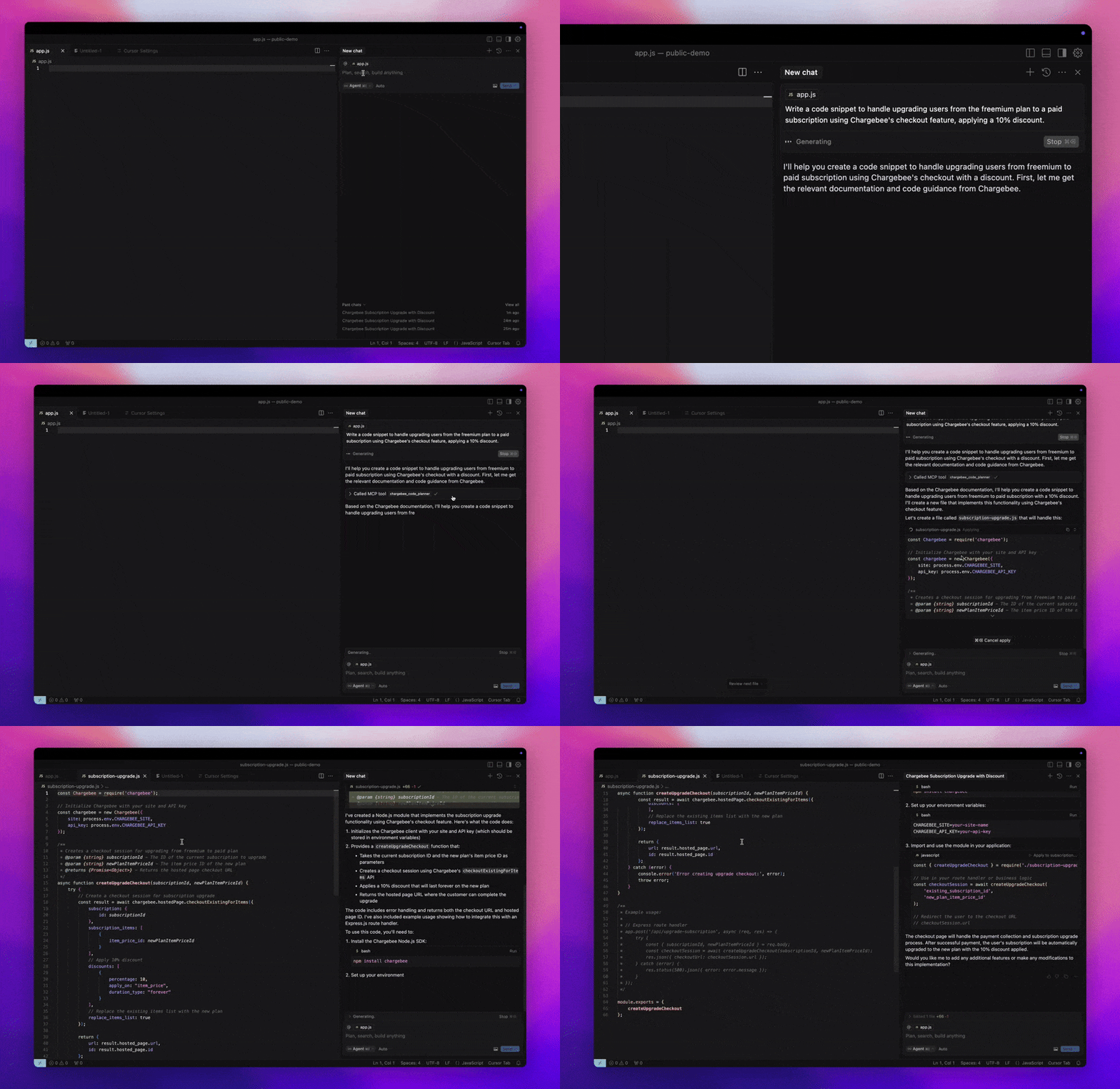
- Get immediate answers about the Chargebee products and API services.
- Receive context-aware code snippets tailored to your integration needs.
- Access Chargebee's knowledge base, including:
- Documentation
- FAQs
- Release notes
- And much more
## Prerequisites
- [Node.js LTS](https://nodejs.org/en/download/) - The Chargebee MCP server requires the Node.js LTS version to function correctly.
## Setup
To run the Chargebee MCP server using [Node.js npx](https://docs.npmjs.com/cli/v10/commands/npx), execute the following command:
```sh
npx -y @chargebee/mcp@latest
```
## Available Tools
| Tool | Description |
| -------------------------------------| -------------------------------------------------------------------------------------------------|
| `chargebee_documentation_search` | Search Chargebee's documentation to retrieve detailed information and usage guides. |
| `chargebee_code_planner` | Generate structured code outlines and sample code for integrating Chargebee's APIs and features. |
## Installation
### Cursor
To add this server to Cursor IDE:
1. Navigate to `Cursor Settings` > `MCP`.
2. Click `+ Add new Global MCP Server`.
3. Add the following configuration to your global `.cursor/mcp.json` file:
```json
{
"mcpServers": {
"chargebee": {
"command": "npx",
"args": [
"-y",
"@chargebee/mcp"
]
}
}
}
```
Refer to the [Cursor documentation](https://docs.cursor.com/context/model-context-protocol) for additional details. Note: You can also add this to your project-specific Cursor configuration (supported in Cursor 0.46+).
### Windsurf
To set up MCP with Cascade:
1. Open Windsurf and navigate to `Settings` > `Advanced Settings` or use the Command Palette > `Open Windsurf Settings Page`.
2. Scroll to the Cascade section to add a new server, view existing servers, or access the raw JSON config file at `mcp_config.json`.
3. Click “Add custom server +” to include the Chargebee MCP server directly in `mcp_config.json`:
```json
{
"mcpServers": {
"chargebee": {
"command": "npx",
"args": [
"-y",
"@chargebee/mcp"
]
}
}
}
```
Refer to the [Windsurf documentation](https://docs.codeium.com/windsurf/mcp) for more information.
### VS Code
Install the Chargebee MCP server in VS Code using one of these buttons:
[<img alt="Install in VS Code Insiders" src="https://img.shields.io/badge/VS_Code_Insiders-VS_Code_Insiders?style=flat-square&label=Install%20Server&color=24bfa5">](https://insiders.vscode.dev/redirect?url=vscode%3Amcp%2Finstall%3F%257B%2522name%2522%253A%2522chargebee%2522%252C%2522command%2522%253A%2522npx%2522%252C%2522args%2522%253A%255B%2522-y%2522%252C%2522%2540chargebee%252Fmcp%2522%255D%257D)
Alternatively, you can install the Chargebee MCP server using the VS Code CLI:
```bash
# For VS Code
code --add-mcp '{"name":"chargebee","command":"npx","args":["-y","@chargebee/mcp"]}'
```
```bash
# For VS Code Insiders
code-insiders --add-mcp '{"name":"chargebee","command":"npx","args":["-y","@chargebee/mcp"]}'
```
After installation, the Chargebee MCP server will be available for use with your GitHub Copilot agent in VS Code.
### Claude
Add the following configuration to your `claude_desktop_config.json` file. Refer to the [Claude Desktop documentation](https://modelcontextprotocol.io/quickstart/user) for more details:
```json
{
"mcpServers": {
"chargebee": {
"command": "npx",
"args": [
"-y",
"@chargebee/mcp"
]
}
}
}
```
### Cline
Manually add the following JSON to your `cline_mcp_settings.json` file via the Cline MCP Server settings:
```json
{
"mcpServers": {
"chargebee": {
"command": "npx",
"args": [
"-y",
"@chargebee/mcp"
]
}
}
}
```
### Roo Code
Access the MCP settings by selecting `Edit MCP Settings` in Roo Code settings or using the `Roo Code: Open MCP Config` command in the VS Code command palette:
```json
{
"mcpServers": {
"chargebee": {
"command": "npx",
"args": [
"-y",
"@chargebee/mcp"
]
}
}
}
```
## Contribution
To contribute to this project, refer to the [contribution guide](CONTRIBUTING.md).
## License
[MIT](https://github.com/chargebee/agentkit/blob/main/LICENSE)
Installation
Add this MCP to your configuration:
{
  "mcpServers": {
    "chargebee": {
      // See GitHub repository for configuration
    }
  }
}
See the GitHub repository for full installation instructions.